
 "Pin It")
 5-Step Tutorial on How to Create and Test a Working Expert Advisor (EA) on MetaTrader-4
MetaTrader 4 (MT4) features a built-in scripting language, MQL4, which enables the conversion of any trading idea into a fully automated Expert Advisor (EA). To accomplish this task, you don’t necessarily have to master MQL4 coding. You only need a software platform or another tool that can code on your behalf. 🔗 You can create MQL code by using a tool like EABuilder.
Basic Tips During the Process of Creating an Expert Advisor
The process of creating an EA begins with a clearly defined trading plan that includes logic, entry and exit rules, position sizing, and risk management. Important tips to keep in mind:
- Avoid hard-coding and add multiple input parameters for flexibility.
- Focus on proper order management. This means the EA must be able to correctly open, modify, and close trades while handling errors and execution delays.
- Backtesting any EA on MT4 is very important. Use precise symbols and timeframes, and assess not only profits, but also drawdowns and profit consistency.
- Never forget to test your Expert Advisor on a Demo Account, and later on a micro-lot account, before trading with serious money.
- When the time comes to trade with real money, make the right brokerage choice. You need an STP/ECN broker offering nothing less than fast execution and tight trading spreads. A free VPN can also be useful. 🔗 Compare ECN/STP Fx Brokers
Creating a working Expert Advisor is not an easy process and demands a deep understanding of trading logic, disciplined money management, and extensive testing. This tutorial outlines a practical, step-by-step approach to creating and backtesting a working EA on MT4, focusing on functionality.

The Five Steps to Create a Working Expert Advisor
To accomplish your objective and build a functional Expert Advisor on MetaTrader, you need to follow five steps.
(1) Creating the MQL Code (.MQ4)
The first step is to create your code in an .MQ4 file. The difference between an .MQ4 file and an executable (.EX4) file is that the former is human-friendly and allows you to easily add comments and make changes. Therefore, you start with an .MQ4 file and then convert it into an executable (.EX4) file.
(i) You can create MQL code by using a software platform for MQL4. 🔗 EABuilder.
(ii) The Expert Advisor requires trading logic, meaning the specific conditions according to which it will open positions in the market. Along with these conditions, it also requires money management logic, which includes position sizing and risk control. Without efficient position sizing and effective risk management, the Expert Advisor will fail 100%.
(iii) After entering your trading logic and parameters, you will end up with an .MQ4 file. This file will later be used to compile the actual Forex robot, which will take the form of an executable (.EX4) file.
(2) Create a Demo Account with a Forex Broker
The second step is to create a free Demo Account with a Forex broker offering MetaTrader-4 Demo Accounts and fully supporting automated trading. Preferably, use a fast broker (ECN/STP) offering tight trading spreads. » Compare ECN/STP Fx Brokers
After opening a Demo Account with a Forex broker, you will have access to two platforms:
(a) The MetaTrader-4 main terminal
(b) The MetaEditor
 (3) Copy the Code into MetaEditor and Compile It
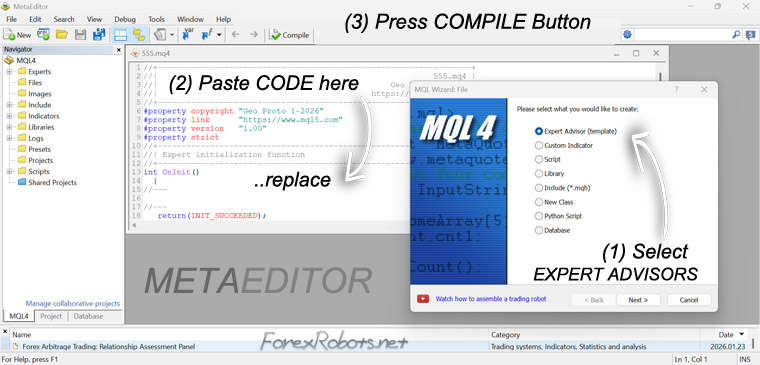
The next step involves copying and pasting your MQL4 code into MetaEditor and transforming it into an executable file (.EX4), which will later be used by MetaTrader-4.
(i) Open the MetaEditor
(ii) Go to File (MENU) ⇒ New File (SUBMENU) ⇒ Expert Advisor (WINDOW)
(iii) Add a name for your Expert Advisor (e.g. TEST) and skip the extra parameters
(iv) You will end up with a new window containing sample MQL4 code. There, you can paste your own code (PASTE CODE)
(v) Click COMPILE (F7) and check for any errors
(vi) If there are no errors, after saving the file, it will automatically appear in your main MetaTrader-4 terminal as TEST.EX4
(4) Find the New Expert Advisor (.EX4 File) in MetaTrader-4
Now, close the MetaEditor software and open the MetaTrader-4 main terminal.
(i) Log in to your MetaTrader-4 platform using a Demo Account
(ii) Press CTRL+N to open the Navigation window
(iii) Scroll down the Navigation window. Under Expert Advisors, you should be able to find your TEST.EX4 file
(5) Backtesting the New Expert Advisor on MetaTrader-4
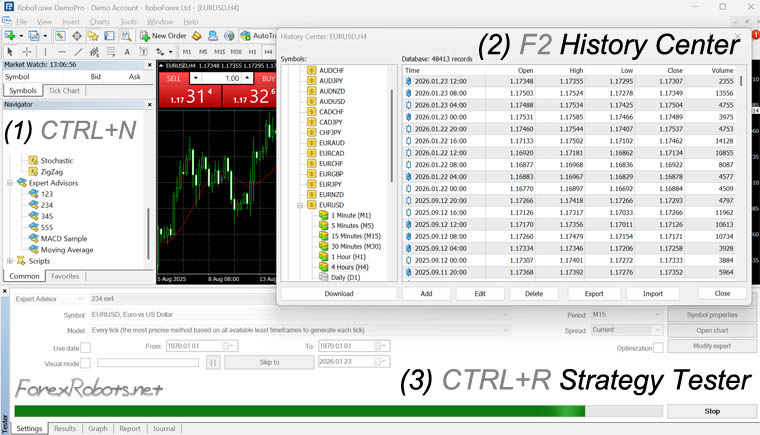 Now that the new Expert Advisor is deployed on MetaTrader-4, you can test it using historical data. To do this, start by selecting historical data as shown below:
(i) Press F2 to open the History Center window. There, you can see the full list of financial assets available for backtesting
(ii) Click on the asset that interests you the most (e.g., EURUSD), select the timeframe on which you want to backtest your EA (e.g., M5, M15, M30), and click DOWNLOAD
(iii) Press CTRL+R to open the Strategy Tester panel at the bottom of the MT4 terminal
(iv) In the Strategy Tester, go to Expert Advisors and then Settings. Choose your Expert Advisor, timeframe, and financial asset, and finally click START
(v) Next to Settings, you can find Results, where you can view the full backtesting output
(vi) Experiment extensively and evaluate how well your EA performs across different timeframes and financial assets
EXAMPLE
The following example refers to a MetaTrader 4 Expert Advisor built using MQL4. This EA is provided strictly for educational purposes and will not trade profitably. Make sure you use any version or product of this EA only on Demo Accounts to test your skills, not on real trading accounts.
Example’s Implementation Notes
- LOGIC: MACD cross logic (trades only LONG)
- Timeframe: trades D1 only
- One trade per symbol at a time
- Maximum 5 open trades globally
- Open position: open position when the MACD line crosses above the Signal line
- Close position: close position when the MACD line crosses below the Signal line
- Risk = 5% of account balance per trade
- Stop Loss = 2% of the initial value of the trade (opened positions)
- Take Profit = 10% of the initial value of the trade (opened positions)

MQL 4 Expert Advisor Code Example
The following code is good for compiling, but not for trading.
//************EXAMPLE EA -NOT FOR TRADING****************
//************STARTING WITH BASIC SETTINGS****************
#property strict
//****************ADDING INPUTS************
input double RiskPercent = 5.0; // % of balance used to size position
input double StopLossPercent = 2.0; // % of initial trade value
input double TakeProfitPercent = 10.0; // % of initial trade value
input int MaxTrades = 5;
//****************ADDING 7 FOREX SYMBOLS************
string Symbols[7] = {"EURUSD","GBPUSD","USDJPY","USDCHF","AUDUSD","NZDUSD","USDCAD"};
//***************Ensuring one trade decision per daily candle, and preventing duplicate trades within the same candle
datetime lastBarTime[7];
//***************ADDING GLOBAL VARIABLES****************
//***************Ensuring that the script runs once when the EA starts to function
int OnInit()
{
ArrayInitialize(lastBarTime,0);
return(INIT_SUCCEEDED);
}
//***********Allows the execution of trades every time the market ticks, if all conditions are met (YES), it proceeds with the MACD logic
void OnTick()
{
if(OrdersTotal() >= MaxTrades)
return;
for(int i=0;i<ArraySize(Symbols);i++)
{
string symbol = Symbols[i];
if(!SymbolSelect(symbol,true)) continue;
if(HasOpenTrade(symbol)) continue;
datetime barTime = iTime(symbol,PERIOD_D1,0);
if(barTime == lastBarTime[i]) continue;
lastBarTime[i] = barTime;
CheckMACD(symbol);
}
}
//*************STRATEGY LOGIC (MACD CROSSES)***********
void CheckMACD(string symbol)
{
double macdPrev = iMACD(symbol,PERIOD_D1,12,26,9,PRICE_CLOSE,MODE_MAIN,1);
double signalPrev = iMACD(symbol,PERIOD_D1,12,26,9,PRICE_CLOSE,MODE_SIGNAL,1);
double macdCurr = iMACD(symbol,PERIOD_D1,12,26,9,PRICE_CLOSE,MODE_MAIN,0);
double signalCurr = iMACD(symbol,PERIOD_D1,12,26,9,PRICE_CLOSE,MODE_SIGNAL,0);
if(macdPrev < signalPrev && macdCurr > signalCurr)
OpenBuy(symbol);
if(macdPrev > signalPrev && macdCurr < signalCurr)
CloseTrade(symbol);
}
//************OPPENING TRADE CONDITIONS**************
void OpenBuy(string symbol)
{
double lots = CalculateLotSize(symbol);
if(lots <= 0) return;
double price = SymbolInfoDouble(symbol,SYMBOL_ASK);
double tradeValue = lots * MarketInfo(symbol,MODE_TICKVALUE) *
(price / MarketInfo(symbol,MODE_POINT));
double slMoney = tradeValue * StopLossPercent / 100.0;
double tpMoney = tradeValue * TakeProfitPercent / 100.0;
double sl = price - MoneyToPrice(symbol,slMoney,lots);
double tp = price + MoneyToPrice(symbol,tpMoney,lots);
OrderSend(symbol,OP_BUY,lots,price,10,sl,tp,"MACD BUY",0,0,clrBlue);
}
//********RISK MANAGAMENT / POSITIONS SIZING*******
double CalculateLotSize(string symbol)
{
double balance = AccountBalance();
double riskMoney = balance * RiskPercent / 100.0;
double tickValue = MarketInfo(symbol,MODE_TICKVALUE);
double point = MarketInfo(symbol,MODE_POINT);
if(tickValue <= 0) return 0;
double lots = riskMoney / (100 * tickValue);
lots = NormalizeDouble(lots,2);
double minLot = MarketInfo(symbol,MODE_MINLOT);
if(lots < minLot) lots = minLot;
return lots;
}
//*****CONVERTS USD TO % OF TRADE VALUE (NOT PIPS)***
double MoneyToPrice(string symbol,double money,double lots)
{
double tickValue = MarketInfo(symbol,MODE_TICKVALUE);
double point = MarketInfo(symbol,MODE_POINT);
return (money / (tickValue * lots)) * point;
}
//******HEDGING PREVENTION************
bool HasOpenTrade(string symbol)
{
for(int i=0;i<OrdersTotal();i++)
{
if(OrderSelect(i,SELECT_BY_POS,MODE_TRADES))
if(OrderSymbol()==symbol && OrderType()==OP_BUY)
return true;
}
return false;
}
//*******CLOSING TRADE CONDITIONS***********
void CloseTrade(string symbol)
{
for(int i=OrdersTotal()-1;i>=0;i--)
{
if(OrderSelect(i,SELECT_BY_POS,MODE_TRADES))
{
if(OrderSymbol()==symbol && OrderType()==OP_BUY)
OrderClose(OrderTicket(),OrderLots(),Bid,10,clrRed);
}
}
}
// *********END********
The above EA example is provided for educational purposes; it will not trade profitably. Make sure you use any product of this code only on a demo account to test your skills, not on real accounts.
◙ Creating and Backtesting a Working Expert Advisor on MetaTrader-4 (Step-by-Step Tutorial)
G.P. for ForexRobots.net (c) January 2026
🔗 Fx Brokers: » ECN / STP Forex Brokers
Read More at ForexRobots.net 
» ECN/STP Forex Brokers
» PAMM Accounts
» Expert Advisor Builder
» StrategyQuant Review
» MQL4TradingAutomation
» WallStreet Forex
» Forex Megadroid
» Forex Diamond
» Forex Trend Detector


